What is the cause for the degradation of environment?
Capitalism, corruption, consuming society? - OVERPOPULATION!
Please, save the Planet - kill yourself...

Showing posts with label QGIS. Show all posts

Monday, November 9, 2015

A satisfied customer

Recently I did a QGIS scripting job and here is the feedback from an extremly satisfied customer:

It was fantastic to work with Yury. He provided an excellent product, that went far beyond what I was expecting. I will certainly be contacting Yury in the future for any jobs that relate to GIS and python scripting. Communication was excellent and his ability to understand the job requirement was very impressive. A+++

Guys, if you are in need of geoprocessing tool for your project - don't hesitate to contact me ;-) 

Friday, October 23, 2015

My QGIS Processing Scripts at GitHub

This is probably my shortest post ever.

All my QGIS processing scripts (R and Python) and models that I already blogged about, plus some extra are now available at GitHub.

Thursday, June 18, 2015

A Quick Map With QGIS and OSM

What I love about QGIS is that one is able to create a nice map quickly. The other day I was asked to make a situation map for the project we are working on to include it into presentation. Аll I had was a laptop with no relevant spatial data at all, but with QGIS installed (I even had no mouse to draw something). Though it was more than enough: I loaded OSM as a base layer and used annotation tool to add more sense to it. Voilà:


Thursday, June 11, 2015

How to Import Layer into PostGIS Database Using PyQGIS

This is strange, but I was unable to find instruction about importing QGIS layers into PostGIS database with PyQGIS API. The PyQGIS cookbook has the example of exporting layers as .shp-files via QgsVectorFileWriter.writeAsVectorFormat() function and says that the other other OGR-supported formats are available to use in this function as well. PostGIS is supported by OGR so people got confused and try to use this function to import data to the PostGIS with no success and have to write generic import functions. 

After of couple of hours of searching the internet for the solution I gave up and decided to find the answer the hard way: started to search through the source code for the DB Manager plugin that has this nice "import layer" feature. It took about 20 minuets to trace down the function that was in charge of the import and it was QgsVectorLayerImport.importLayer(). But the quest wasn't over yet! The documentation says nothing about provider names that are accepted by this function. "PostgreSQL" would be the obvious name for the provider as it is the name for the PostgeSQL provider in OGR, but it is not the case. I had to go through the source code of DB Manager again and luckily in comments (and there are quite a few of them in DB Manager: I didn't find a single doc-string there) the author wrote that it is "postgres" for the PostgreSQL. UPD: the function to list available providers is QgsProviderRegistry.instance().providerList().

Now here is the very basic example code of importing QGIS layer into PostGIS:


uri = "dbname='test' host=localhost port=5432 user='user' password='password' key=gid type=POINT table=\"public\".\"test\" (geom) sql="
crs = None
# layer - QGIS vector layer
error = QgsVectorLayerImport.importLayer(layer, uri, "postgres", crs, False, False)
if error[0] != 0:
    iface.messageBar().pushMessage(u'Error', error[1], QgsMessageBar.CRITICAL, 5)

Wednesday, April 1, 2015

A Note About a "#IND"-Error in OfreoToolbox Classification Algorithms

One of the optional input for the creation of the classification models in OrfeoToolbox is XML image statistic file that is produced by Compute Image Second Order Statistics tool. If you opt to calculate this statistics - necessarily check the created XML file. If you will see "#INF" record in band statistics (i.e. "1.#INF") - replace "#INF" with something like "0e+32" ("1.#INF" -> "1.0e+32"), or (a better solution) - calculate the statistics for this problematic band independently (probably with another tool) and completely replace the value. 

If you leave "#INF" record in XML file, models for classification that will be created based on it will have "#IND" records and when you will try to run classification based upon these models - the process will be terminated complaining about unrecognised "#IND"-values, because values must be numeric and not characters.

I don't know what causes the "#INF" records to appear in the first place, maybe not properly defined no-data values? In some cased it is impossible to provide correct no-data value due to limitations of the input field (I use OTB from within Processing module for QGIS). 

Saturday, January 31, 2015

Pansharpening in QGIS Using QTB

UPD: also you may want to check out my post on Pansharpening using R.

For a long time I wanted to play with the OrfeoToolBox instruments (and its GUI named Monteverdi) - a set of powerfull tools to process remote-sensing imagery. Finally I got the opportunity - I needed to perform pansharpening of the World-View-2 scene and I decided to make it using OTB modules available via QGIS Processing toolbox.

To make OTB modules available in QGIS you need to install it on your system. Official site provides good instructions on how to do it. When you have OTB installed you need to enable it in QGIS. Go Processing -> Options and configuration -> Providers, activate OTB and provide folder information if needed:

A dialogue to enable OTB modules in QGIS

Pansharpening is made in two steps: 1) resampling of the low resolution raster via Superimpose sensor tool; 2) pansharpening using Pansharpening tool. Alternatively you can do it using one command line (no QGIS or other GUI needed) in your OS's console: 
otbcli_BundleToPerfectSensor -inp pan_image -inxs xs_image -out output_image.  
Performing two steps instead of just one is super-boring! Lets create a model that will allow us to perform pansharpening in QGIS in one step (virtually). Go to Processing Toolbox -> Models -> Tools and start creating new model:

Processing toolbox location of 'Create new model tool'

In the model creation window fill the fields of the model name and group name. Then add two rasters as inputs and name them: High_resolution_panchrom_raster and Low_resolution_raster. Now add the module named Superimpose sensor (Orfeo Toolbox -> Geomentry -> Superimpose sensor) and configure it to resample the Low_resolution raster: use High_resolution_panchrom_raster as input in Reference input field and Low_resolution_raster as input in The image to reproject field. 

Superimpose sensor dialogue window

Add Pansharpening (rsc) (Orfeo Toolbox -> Geomentry -> Superimpose sensor) module to model. Use High_resolution_panchrom_raster as input in the Input PAN Image and output of the Superimpose sensor as the input in the Input XS Image field. Give a name (pansharpened_OTB) for the Output image to let model know that this is the final stage of the processing.
Pansharpening (rsc) dialogue window

Here how our model looks like in Model builder:
Overview of the Pan-sharpening model in model builder

And this is how it looks like when you launch it:
Pan-sharpening model window

Also you can skip model creation process and just download model that I created. You need to paste files from archive's models folder into your /.qgis2/processing/models directory.

If you will have issues running OTB Pansharpening it is likely that they will be covered in following gis.stackexchange topics: OTB Pansharpening Error: Adapter for adaptPansharpening-bayes not found and What causes OTB pansharpening ERROR: Inputs do not occupy the same physical space? 

Sunday, December 14, 2014

How to Get Accurate Measurements in QGIS

This post is mainly my answer to the corresponding question.

The main rule for accurate measurements is to define correct CRS for your layers and project. This is somewhat wide theme to talk about so I won't ;-) 

Lets just discuss what you should do when the project CRS can't be easily used for measurement (like Web Mercator) and you want to use Measure tool to calculate distance or area. Go Settings -> Project Properties, in CRS tab enable on the fly transformation; in General tab in Measure tool menu choose ellipsoid for distance calculations. See picture:


When you start measurements with the Measure tool move your cursor over the Measure window - an information about measurement settings will pop up just like that:


Now you can make your measurements and be sure that they are accurate. NOTE that you should always check Measure tool settings like it shown at the picture above because Ellipsoid settings for the Measure tool are not always stored or displayed in Project settings correctly (QGIS 2.6.1).

Saturday, September 13, 2014

The Most Hilarious Rendering "Bug" I've Ever Seen

Can you guess the projection that I used to display a world map at the picture below (EPSG code is left there because I doubt someone would recall it anyway)?


It is the World Bonne projection in QGIS (original shp's CRS is EPSG:4326). I already had some fun with Bonne in this post. The world got torn apart at scale 1:75 000 000. At bigger scales map renders normally:


Fortunately this issue can be easily resolved by disabling "feature simplification by default for newly added layers" under Settings -> Options -> Rendering. 

Monday, September 8, 2014

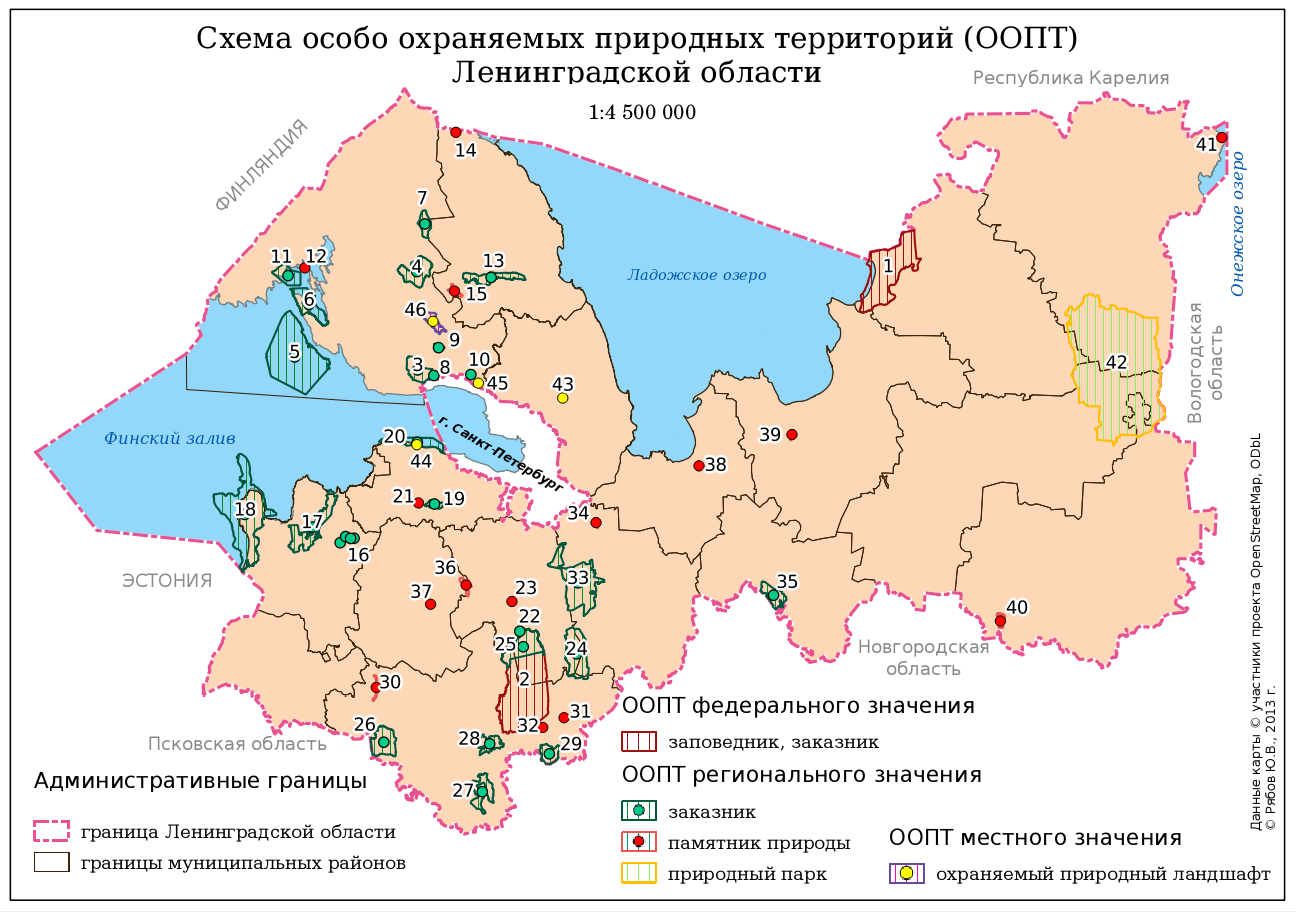
Schema of the Conservation Areas in Leningradskaya Region: Some Notes for Beginner Mappers

Schema of the Conservation Areas in Leningradskaya Region

About a year ago I was asked to create a small (a B5 size) and simple schema of the conservation areas in Leningradskaya region. I did it using QGIS. Here you are the author version of the schema and several notes that might be helpful for a beginner map-maker.

There was a huge disproportion between areas of different objects and both polygon and point markers were needed to show them. I decided to use Centroid Fill option in polygon style to be able to use only one layer (polygon) instead of two (polygon and point). Using Centroid Fill makes points in centres of the small polygons overlap and mask these tiny polygons. 

All the administrative borers were stored in one layer (and there are far more borders than one see here). They are drawn using rule-based symbology so I didn't even need to subset this layer to get rid of the rest of the polygons in this layer.

All the names of the surrounding countries, regions, city and the water bodies are not labels derived from layers, but labels created inside the map composer. It was quicker and their position was more precise which is crucial for such a small schema.

There was a lack of space for the legend so I had to utilise every bit of canvas to place it. I had to use 3 legend items here. One of them is actually overlapping the other and setting a transparent background for the legends was helping with that.

Finally labels for the conservation areas (numbers) were outlined with white colour to be perfectly readable. Some of them were moved manually (with storing coordinates in special columns of the layer) to prevent overlapping with other labels and data.

P.S. Don't be afraid to argue with the client about the workflow. Initially I was asked it manually digitise a 20 000 x 15 000 pixels raster map of the Leningrad region to extract the most precise borders of the conservation areas (and districts of the region). Of course I could do it and charge more money for the job, but what's the point if some of that borders are not even to be seen at this small schema? So I convinced client to use data from OSM and saved myself a lot of time.

Thursday, May 8, 2014

Classification of the Hyper-Spectral and LiDAR Imagery using R (mostly). Part 3: Shadow Removal

This is my third post in this series, here are the links to the Part 1 and Part 2. Sorry for the delay, but at that time I got completely consumed with my PhD thesis and this story just went out of my mind.

To the point. There were 2 types of shadows I had to deal with: cloud shadows and cast shadows (from building and trees). In scientific literature you can find several relatively complicated algorithms to deal with them (including DEM usage for cast shadow detection) and I definitely should have used some of them, but... I was too lazy to implement them when there were couple of quick'n'dirty workarounds available.

Cloud shadow removal

To remove cloud shadows I decided to calculate ratio between mean pixel value of the lighted up and shadowed parts of the raster for each band and multiply shadowed pixels by this ratio.  I manually created a mask for shadowed areas. There were 3 areas and their borders were quite distinct in NIR channels:

Cloud shadows in one of the NIR bands

I drew several polygons over shadows in QGIS and converted them to raster (Raster -> Conversion -> Rasterise). Now everything was ready for patching:

library(raster)
library(rgdal)

# load rasters
image <- stack('2013_IEEE_GRSS_DF_Contest_CASI.tif') # hyper spectral imagery
s_mask <- raster('shadow_mask.tif') # mask for cloud shadow

# extract shadowed area
m_cloud <- s_mask
m_cloud[m_cloud < 1] <- NA
shadowed <- mask(image, m_cloud)

# calculate zonal statistics
zd <- zonal(image, s_mask, fun = 'mean', na.rm = T)
zd <- as.data.frame(zd)

# calculate ratio between lighted up and shadowed zones
zd[3,] <- zd[1,] / zd[2,] 

# recalculae data in shadows
multiplyer <- zd[3,]
multiplyer <- multiplyer[,2:ncol(zd)]
multiplyer <- as.numeric(multiplyer)
enlight <- shadowed*multiplyer # patch layer
restored <- cover(enlight, image, progress = 'text')

# save result
wr <- writeRaster(restored, 
                  filename = 'restored.tif', 
                  datatype = 'GTiff', overwrite = TRUE)


Now it's time to check out results:

The same NIR band after cloud shadow removal
Yes, we can easily find patched areas, but overall result is good for such simple approach.

Cast shadow removal

Shadows from buildings can be processed the same way as cloud shadows as shown above except mask creation approach is different. In case of cast shadows they have to be detected automatically (for there are a bit more than 3 as in case with clouds). Using one of the NIR bands I created a learning sample of points and passed it to Random Forest algorithm to classify imagery into shadowed and non-shadowed areas. I will not describe here this classification process for Random Forest was used for overall classification of the imagery and it is the subject of my next post of this series.

Monday, April 21, 2014

Unify Extent and Resolution Script Updated

Script for unifying extent and resolution is now able to work with multi-band rasters. Also I fixed an error that caused output rasters to have different resolutions in some cases.

Saturday, January 4, 2014

Unifying Extent and Resolution of Rasters Using Processing Framework in QGIS

My post about modification of extent and resolution of rasters drew quite a bit of attention and I decided to make a small New Year's present to the community and create a QGIS Processing script to automate the process.

The script was designed to be used within Processing module of QGIS. This script will make two or more rasters of your choice to have the same spatial extent and pixel resolution so you will be able to use them simultaneously in raster calculator. No interpolation will be made - new pixels will get predefined value. Here is a simple illustration of what it does:
Modifications to rasters A and B


To use my humble gift simply download this archive and unpack files from 'scripts' folder to your .../.qgis2/processing/scripts folder (or whatever folder you configured in Processing settings). At the next start of QGIS you will find a 'Unify extent and resolution' script in 'Processing Toolbox' in 'Scripts' under 'Raster processing' category:

If you launch it you will see this dialogue:
Main window


Note that 'Help' is available:
Help tab
Lets describe parameters. 'rastersare rasters that you want to unify. They must have the same CRS. Note that both output rasters will have the same pixel resolution as the first raster in the input.
Raster selection window
'replace No Data values with' will provide value to pixels that will be added to rasters and replace original No Data values with the value provided here. Note that in output rasters this value will not be saved as No Data value, but as a regular one. This is done to ease feature calculations that would include both of this rasters, but I'm open to suggestions and if you think that No Data attribute should be assigned I can add corresponding functionality.

Finally you mast provide a path to the folder where the output rasters will be stored in 'output directory' field. A '_unified' postfix will be added to the derived rasters file names: 'raster_1.tif' -> 'raster_1_unified.tif'

If CRSs of rasters won't match each other (and you will bypass built-in check) or  an invalid pass will be provided a warning message will pop up and the execution will be cancelled:
Example of the warning message
When the execution is finished you will be notified and asked if rasters should be added to TOC:


Happy New Year!

P.S. I would like to thank Australian government for making the code they create an open source. Their kindness saved me a couple of hours. 

Wednesday, September 18, 2013

Count Unique Values In Raster Using SEXTANTE and QGIS

I decided to make my script for counting unique values in raster more usable. Now you can use it via SEXTANTE in QGIS. Download script for SEXTANTE and extract archive to the folder that is is intended for your Python SEXTANTE scripts (for examlple ~./qgis2/processing/scripts). If you don't know where this folder is located go Processing -> Options and configuration -> Scripts -> Scripts folder, see the screenshot:


Processing options

Now restart QGIS and in SEXTNTE Toolbox go to Scripts. You will notice new group named Raster processing. There the script named Unique values count will be located:


Launch it and you will see its dialogue window:

Unique values count script main window
Main window

Note that Help is available:
Unique values count script help tab

Either single- or multi-band rasters are accepted for processing. After the raster is chosen (input field) one need to decide whether to round values for counting or not. If no rounding is needed - leave 'round values to ndigits' field blank. Otherwise enter needed value there. Note that negative values are accepted - this will round values to ndigits before decimal point.

When the set up is finished hit the Run button. You will get something like this:
Result window
Result window

Saturday, August 17, 2013

How to Count Unique Values in Raster

Recently I demonstrated how to get histograms for the rasters in QGIS. But what if one need to count exact number of the given value in a raster (for example for assessment of classification results)? In this case the scripting is required.

UPD: the script below was transformed in more usable SEXTANTE script, see this post.

We'll use Python-GDAL for this task (thanks to such tutorials as this one) it is extremely easy to learn how to use it). The script I wrote seems to be not optimal (hence its working just fine and quickly so you may use it freely) due to it is not clear to me whether someone would like to use it for the floating data types (which seems to be not that feasible due to great number of unique values in this case) or such task is performed only for integers (and in this case code might be optimised). It works with single and multi band rasters.

How to use

The code provided below should be copied into a text file and saved with '.py' extension. Enable Python console in QGIS, hit "Show editor" button in console and open the script file. Then replace 'raster_path' with the actual path to the raster and hit 'Run script button'. In the console output you will see sorted list of unique values of raster per band:

QGIS Python console view
Script body (to the right) and its output (to the left)

Script itself

#!/usr/bin/python -tt
#-*- coding: UTF-8 -*-

'''
#####################################################################
This script is designed to compute unique values of the given raster
#####################################################################
'''

from osgeo import gdal
import sys
import math

path = "raster_path"

gdalData = gdal.Open(path)
if gdalData is None:
  sys.exit( "ERROR: can't open raster" )

# get width and heights of the raster
xsize = gdalData.RasterXSize
ysize = gdalData.RasterYSize

# get number of bands
bands = gdalData.RasterCount

# process the raster
for i in xrange(1, bands + 1):
  band_i = gdalData.GetRasterBand(i)
  raster = band_i.ReadAsArray()

  # create dictionary for unique values count
  count = {}

  # count unique values for the given band
  for col in range( xsize ):
    for row in range( ysize ):
      cell_value = raster[row, col]

      # check if cell_value is NaN
      if math.isnan(cell_value):
        cell_value = 'Null'

      # add cell_value to dictionary
      try:
        count[cell_value] += 1
      except:
        count[cell_value] = 1

  # print results sorted by cell_value
  for key in sorted(count.iterkeys()):
    print "band #%s - %s: %s" %(i, key, count[key])

Sunday, July 28, 2013

Classification of the Hyper-Spectral and LiDAR Imagery using R (mostly). Part 1: Result Evaluation

Introduction

This us the first post of my series notes about hyperspectral imagery classification. See other parts: Part 2: Classification Approach and Spectral Profiles Creation
There was the EEEI Data Fusion Contest this spring. This year they wanted people to elaborate about hyper-spectral (142-bands imagery) and LiDAR data. The resolution of the data-set was about 5 m.  There were 2 nominations: best classification and  the best scientific paper. 

I work with high-resolution imagery quite often, but classification is a very rear task for me though. I thought that this contest was a great opportunity to develop my skills. And not just a classification skills, but R skills as well... I decided to participate in best classification contest, and to use R for the most part. 

I learned a lot and I will share my knowledge with you in a series of posts starting with this one. And like in some great novels, I will start from the very end - evaluation of my results.
Results of my classification (created in R, designed in QGIS)

Contest results

...are available here. As you may notice, I'm not on the list of the 10 best classification ;-) But there is almost unnoticeable 0.03% difference between my result (85.93% accuracy) and the result of the 10-th place. Not a bad result for a relatively inexperienced guy, don't you think? And I know, that I could have done better - I had 99% prediction accuracy for the training samples. It's funny, but my classification map looks better than map that took 7-th place!

How to evaluate classification using R

Due to I was not on the top ten list, I had to evaluate the result on my own. The organisers finally disclosed evaluation samples and I got a chance for a self assessment. So we have a set of .shp-files - each contains ground-truth polygons for one of the 16 classes and a classification map. We need to accomplish 3 goals: 
  1. Create a visual representation of missclassification.
  2. Assess accuracy.
  3. Create a confusion matrix.
  4. Visualise classification map using EEEI colour palette.

Lets get a palette!

Official EEEI palette
To extract colour values from the palette above you may use GIMP. But I used a widget that every KDE-user (Linux) should have by default. You can probe and save colour values from any part of your screen. Quite useful!

'Color picker' in work
Now let's see the code for our tasks.

Load needed libraries

library(rgdal)
library(raster)
library(reshape2)
library(caret)
library(ggplot2)

Load and process data

# get classification raster
ras <- raster('~/GIS/IEEE_contest_2013/2013_IEEE_GRSS_DF_Contest/raster.tif',
              verbose = T)
# get list of shp-files for evaluation
shapes <- list.files(path = '~/GIS/IEEE_contest_2013/2013_IEEE_GRSS_DF_Contest/roi', pattern = '*shp')
# a list for accuracy assessment
accuracy_list <- list()

# create an empty dataframe to be filled vith evaluation results
# field names are not arbitrary!!!
eval_df <- data.frame(variable = character(),
                      value = character())

# create an empty dataframe to be used for plotting
# field names are not arbitrary!!!
plot_data <- data.frame(variable = character(),
                        value = character(),
                        Freq = integer())


for (f_name in shapes) {
  # delete '.shp' from the filename
  layer_name <- paste(sub('.shp', '', f_name))
  class <- readOGR("~/GIS/IEEE_contest_2013/2013_IEEE_GRSS_DF_Contest/roi",
                   layer = layer_name,
                   verbose = F)

  # extract values from raster
  probe <- extract(ras, class)

  # replace class numbers with names 
  samples <- list()
  for (lis in probe) {
    for (value in lis) {
      if (value == 0) {c_name <- Unclassified
      } else if (value == 1) {c_name <- 'Healthy grass'
      } else if (value == 2) {c_name <- 'Stressed grass'
      } else if (value == 3) {c_name <- 'Synthetic grass'
      } else if (value == 4) {c_name <- 'Trees'
      } else if (value == 5) {c_name <- 'Soil'
      } else if (value == 6) {c_name <- 'Water'
      } else if (value == 7) {c_name <- 'Residential'
      } else if (value == 8) {c_name <- 'Commercial'
      } else if (value == 9) {c_name <- 'Road'
      } else if (value == 10) {c_name <- 'Highway'
      } else if (value == 11) {c_name <- 'Railway'
      } else if (value == 12) {c_name <- 'Parking Lot 1'
      } else if (value == 13) {c_name <- 'Parking Lot 2'
      } else if (value == 14) {c_name <- 'Tennis Court'
      } else if (value == 15) {c_name <- 'Running Track'} 
      samples <- c(samples, c = c_name)
    }
  }

  # make layer_name match sample name
  if (layer_name == 'grass_healthy') {layer_name <- 'Healthy grass'
  } else if (layer_name == 'grass_stressed') {layer_name <- 'Stressed grass'
  } else if (layer_name == 'grass_syntethic') {layer_name <- 'Synthetic grass'
  } else if (layer_name == 'tree') {layer_name <- 'Trees'
  } else if (layer_name == 'soil') {layer_name <- 'Soil'
  } else if (layer_name == 'water') {layer_name <- 'Water'
  } else if (layer_name == 'residental') {layer_name <- 'Residential'
  } else if (layer_name == 'commercial') {layer_name <- 'Commercial'
  } else if (layer_name == 'road') {layer_name <- 'Road'
  } else if (layer_name == 'highway') {layer_name <- 'Highway'
  } else if (layer_name == 'railway') {layer_name <- 'Railway'
  } else if (layer_name == 'parking_lot1') {layer_name <- 'Parking Lot 1'
  } else if (layer_name == 'parking_lot2') {layer_name <- 'Parking Lot 2'
  } else if (layer_name == 'tennis_court') {layer_name <- 'Tennis Court'
  } else if (layer_name == 'running_track') {layer_name <- 'Running Track'} 

  # create a dataframe with classification results
  df <- as.data.frame(samples)
  dfm <- melt(df, id = 0)
  dfm['variable'] <- layer_name

  # add data to evaluation dataframe
  eval_df <- rbind(eval_df, dfm)

  # assess accuracy of current class
  mytable <- table(dfm)
  dmt <- as.data.frame(mytable)
  total_samples <- 0
  correct_predictions <- 0
  for (i in 1:nrow(dmt)) {
    predict_class <- toString(dmt[i,2])
    pc_frequency <- dmt[i,3]
    if (predict_class == layer_name) {
      correct_predictions <- dmt[i,3]
    }
    total_samples <- total_samples + pc_frequency
  }
  accuracy <- round(correct_predictions/total_samples, 2)
  accuracy_list <- c(accuracy_list, c = accuracy)


  # append data for plotting
  plot_data <- rbind(plot_data, dmt)
}

Create a fancy graph (that is shown on the map)


# create facets plot
EEEI_palette <- c('#D4D4F6',
                  '#5F5F5F',
                  '#710100',
                  '#00B300',
                  '#007900',
                  '#014400',
                  '#008744',
                  '#D0B183',
                  '#BAB363',
                  '#DAB179',
                  '#737373',
                  '#A7790A',
                  '#00EA01',
                  '#CA1236',
                  '#00B9BB')
plot_data <- plot_data[order(plot_data$variable),]
p = ggplot(data = plot_data,
           aes(x = factor(1),
               y = Freq,
               fill = factor(value)
           )
)
p <- p + facet_grid(facets = . ~ variable)
p <- p + geom_bar(width = 1) +
  xlab('Classes') +
  ylab('Classification rates') +
  guides(fill=guide_legend(title="Classes"))+
  scale_fill_manual(values = EEEI_palette)+
  ggtitle('Classification Accuracy')+
  theme(axis.text.x = element_blank(), axis.ticks.x = element_blank())
p

Let't finally get our accuracy result!


# accuracy assessment
fin_accuracy <- mean(unlist(accuracy_list))
fin_accuracy <- paste(round(fin_accuracy*100, 2), '%', sep = '')
print(paste('Total accuracy:', fin_accuracy), sep = ' ')

[1] "Total accuracy: 85.93%"

Confusion matrix


# confusion matrix creation
true <- as.factor(eval_df$variable)
predict <- as.factor(eval_df$value)
confusionMatrix(predict, true)


Enjoy statistics!
Confusion Matrix and Statistics

                 Reference
Prediction        Commercial Healthy grass Highway Parking Lot 1
  Commercial             850             0      14           151
  Healthy grass            0           868       0             0
  Highway                  0             0     718            14
  Parking Lot 1           41             0      54           641
  Parking Lot 2            0             0      19            73
  Railway                  0             0      11            44
  Residential            155             0     191             0
  Road                     0             0      20           107
  Running Track            0             0       0             0
  Soil                     0             0       1             0
  Stressed grass           0            61       0             0
  Synthetic grass          0             0       0             0
  Tennis Court             0             0       0             0
  Trees                    0           117       0             0
  Water                    0             0       0             0
                 Reference
Prediction        Parking Lot 2 Railway Residential Road Running Track
  Commercial                  0       0          74    2             0
  Healthy grass               0       0           0    0             0
  Highway                     0       9           0    0             0
  Parking Lot 1             104       8           0   11             0
  Parking Lot 2             155       4           0    3             0
  Railway                     2     917          11   61             0
  Residential                 0      40         918    0             0
  Road                       12      14           0  930             0
  Running Track               0       0           1    0           465
  Soil                        6       2           0   27             1
  Stressed grass              0      11           4    0             0
  Synthetic grass             0       0           0    0             3
  Tennis Court                0       3           0    0             0
  Trees                       0       0          10    0             0
  Water                       0       0           0    0             0
                 Reference
Prediction        Soil Stressed grass Synthetic grass Tennis Court Trees
  Commercial         0              0               0            0     0
  Healthy grass      0             14               0            0    34
  Highway            0              0               0            0     0
  Parking Lot 1      0              0               0            0     0
  Parking Lot 2      0              0               0            0     0
  Railway            0              0               0            0     0
  Residential        0              1               0            0     0
  Road              14              0               0            0     0
  Running Track      0              0               0            0     0
  Soil            1040              0               0            0     0
  Stressed grass     0            931               0            0    17
  Synthetic grass    0              0             503            0     0
  Tennis Court       0              0               0          245     0
  Trees              0             85               0            0  1004
  Water              0              0               0            0     0
                 Reference
Prediction        Water
  Commercial          0
  Healthy grass       3
  Highway             0
  Parking Lot 1      22
  Parking Lot 2       0
  Railway             0
  Residential         0
  Road                0
  Running Track       0
  Soil                0
  Stressed grass      0
  Synthetic grass     0
  Tennis Court        0
  Trees               0
  Water             118

Overall Statistics

               Accuracy : 0.859         
                 95% CI : (0.853, 0.866)
    No Information Rate : 0.088         
    P-Value [Acc > NIR] : <2e-16        

                  Kappa : 0.847         
 Mcnemar's Test P-Value : NA            

Statistics by Class:

                     Class: Commercial Class: Healthy grass Class: Highway
Sensitivity                     0.8126               0.8298         0.6984
Specificity                     0.9780               0.9953         0.9979
Pos Pred Value                  0.7791               0.9445         0.9690
Neg Pred Value                  0.9820               0.9839         0.9724
Prevalence                      0.0872               0.0872         0.0857
Detection Rate                  0.0709               0.0724         0.0599
Detection Prevalence            0.0910               0.0767         0.0618
                     Class: Parking Lot 1 Class: Parking Lot 2
Sensitivity                        0.6223               0.5556
Specificity                        0.9781               0.9915
Pos Pred Value                     0.7276               0.6102
Neg Pred Value                     0.9650               0.9894
Prevalence                         0.0859               0.0233
Detection Rate                     0.0535               0.0129
Detection Prevalence               0.0735               0.0212
                     Class: Railway Class: Residential Class: Road
Sensitivity                  0.9097             0.9018      0.8994
Specificity                  0.9883             0.9647      0.9848
Pos Pred Value               0.8767             0.7034      0.8478
Neg Pred Value               0.9917             0.9906      0.9905
Prevalence                   0.0841             0.0849      0.0862
Detection Rate               0.0765             0.0766      0.0776
Detection Prevalence         0.0872             0.1088      0.0915
                     Class: Running Track Class: Soil
Sensitivity                        0.9915      0.9867
Specificity                        0.9999      0.9966
Pos Pred Value                     0.9979      0.9656
Neg Pred Value                     0.9997      0.9987
Prevalence                         0.0391      0.0879
Detection Rate                     0.0388      0.0867
Detection Prevalence               0.0389      0.0898
                     Class: Stressed grass Class: Synthetic grass
Sensitivity                         0.9030                 1.0000
Specificity                         0.9915                 0.9997
Pos Pred Value                      0.9092                 0.9941
Neg Pred Value                      0.9909                 1.0000
Prevalence                          0.0860                 0.0420
Detection Rate                      0.0777                 0.0420
Detection Prevalence                0.0854                 0.0422
                     Class: Tennis Court Class: Trees Class: Water
Sensitivity                       1.0000       0.9517      0.82517
Specificity                       0.9997       0.9806      1.00000
Pos Pred Value                    0.9879       0.8257      1.00000
Neg Pred Value                    1.0000       0.9953      0.99789
Prevalence                        0.0204       0.0880      0.01193
Detection Rate                    0.0204       0.0837      0.00984
Detection Prevalence              0.0207       0.1014      0.00984

As you may see, the main source of misclassification are Parking Lot 1 and Parking Lot 2. The accuracy for other classes is above 90%, and it is great. Frankly, I still don't understand what is the difference between Parking Lots 1  and 2... Official answer was that Parking Lot 2 is cars (isn't detecting them using 5 m resolution imagery is a questionable task???)... But it seems that it is something else. It is hard to classify something that you don't understand what it is...

Sunday, July 7, 2013

Getting raster histogram in QGIS using SEXTANTE and R

The issue with the broken histogram creation tool in QGIS annoyed me far too long. Sometimes you just need a quick glance on the histogram of a raster just to make a decision on how to process it or just to assess distribution of classes. But as you know, QGIS histogram tool creates broken plots: they are just useless (don't know if something have changed in Master).

Fortunately there is the SEXTANTE - extremely useful plugin that provides access to hundreds of geoprocessing algorithms and allows to create your own very quickly. SEXTANTE grants access to R functions, and one of the out-of-the-box example scripts, surprise-surprise, is about raster histogram creation. "Hooray! The problem is solved!" - one may cry out. Unfortunately it's not. "Raster histogram" tool is somewhat suitable only for single-band rasters (its algorithm is as simple as hist(as.matrix(raster))). Obviously we need to create our own tool. Luckily it is extremely simple if one is already familiar with R.

To create your own R tool for QGIS go to Analisys menu and activate SEXTANTE toolbox. Then go to R-scripts -> Tools and double-click 'Create new R script' and just copy and paste this code (an explanatoin will follow the description):
UPD: now this code works for both multi-band and single-band rasters. Here is the code for QGIS 1.8.
##layer=raster
##Tools=group
##dens_or_hist=string hist
##showplots
library('rpanel')
library('rasterVis')
str <- dens_or_hist
if (str !='dens' & str != 'hist'){
rp.messagebox('you must enter "dens" or "hist"', title = 'oops!')
} else {
    im <- stack(layer)
    test <- try(nbands(im))
    if (class(test) == 'try-error') {im <- raster(layer)}
    if (str == 'dens') {
    densityplot(im)
    } else if (str == 'hist') {
    histogram(im)
  }
} 

UPD2: Here is the code for QGIS 2.0:
##layer=raster
##Raster processing=group
##dens_or_hist=string hist
##showplots
library('rpanel')
library('rasterVis')
str <- dens_or_hist
if (str !='dens' & str != 'hist'){
  rp.messagebox('you must enter "dens" or "hist"', title = 'oops!')
  } else {
      if (nbands(layer) == 1) {
      layer <- as.matrix(layer)
      layer <- raster(layer)
        }
      if (str == 'dens') {
        densityplot(layer)
        } else if (str == 'hist') {
            histogram(layer)
            }
      }
Now save the script. It will appear among other R scripts. Launch it and you will see this window:
script window
Script window
In 'layer' drop-down menu choose needed raster. In 'dens or hist' field type dens or hist to identify which representation of the raster cell data you prefer: density plot or a histogram. [ It would be great to know if it is possible to embed these options in drop-down menu as well (help me if you know how). ] In 'R plots' field set the destination of the graph to be saved (optional). If you chose density plot you will get something like this:
raster density plot
Density plot
If you choose histogram, you will get something like this:
raster histogram
Histogram
And if you fail to provide correct value in 'dens or hist' field you will get this:
warning window
Fail window

How it works.

##layer=raster  provides us with the drop-down menu to select needed raster and it will be addresed as layer in our script. ##Tools=group will assign our script to the Tools group of R scripts in SEXTANTE. ##dens_or_hist=string provides us with the string input field dens or hist. ##showplots will show the plot in Results window after execution. library('rpanel') this library is needed to show pop-up window with the error when the user fails to type 4 letters correctly. library('rasterVis') this library works on top of raster package and it is responsible for plotting our graphs. Then we define condition to pop up error window via rp.messagebox if the plot type is misspelled or missing. The following piece of code is interesting:
im <- stack(layer)
test <- try(nbands(im))
if (class(test) == 'try-error') {im <- raster(layer)}
In order to correctely process the raster we need to have a RasterStack class for multi-band raster or a RasterLayer class if the raster is single-banded. 'raster' package is a bit weird with its classes so there are even different functions for determination of the number of bands for different classes and types of rasters. So the code above is weird too))) We assume that the raster is multi-banded and create a RasterStack object. Then we check whether our guess was correct: if raster is actually single-banded we will have an error if we try to use nbands() function on it.  If it is the case - we will create RasterLayer object instead of RasterStack.
Finally, we transform our raster to the RasterStack object to be able to run either densityplot() or histogram() function.

Final notes

In a blink of an eye we were able to create quite handy tool to replace a long broken one. But there is the downside. This script won't be able to handle huge rasters - I wasn't able to process my IKONOS imagery where sides of the rasters exceeds 10000 pixels. Also I would not recommend to use in on a hyperspectral imagery with the dozens of bands because the process will run extremely sloooow (it will take hours and tons of RAM) and the result will be obviously unreadable.

Thursday, March 7, 2013

DSM to DEM Conversion

Often you may have some Digital Surface Model (DSM) acquired from a LiDAR data, and you may desire to get rid of buildings and trees in order to get a DEM. There can be found some articles on a subject that would provide more accurate result then that described here. But I will show here my quick-n-dirty way when one don't need extreme accuracy. It is meant to be used for a relatively flat urban areas.

There will be 3 steps:
  1. Subtraction of the elevated objects like buildings and trees from DSM.
  2. Filling the gaps of the raster cleaned of the elevated objects.
  3. Polishing the DEM.
FOSS software you will need: SAGA GIS, QGIS.

Initial DSM (LiDAR)

Friday, November 9, 2012

Utility for Polygon Width Calculation Is Updated

I fixed an issue of my utility for polygon width calculation in a given direction caused by redundant geometry created in certain circumstances.  'Fixed' - somewhat a too strong claim for a nasty about 100 lines long workaround-function, where I had to comment almost every line to trace what is going on (optimisation is left for the feature). Nevertheless full functionality of the utility is now available! Updated version is here.

Another note: check validity of your polygons geometries beforehand to obtain correct results.

Sunday, October 21, 2012

Fire Dynamics In Leningrad Region in 2006

Today I decided to play with TimeManager plugin for QGIS that was introduced by underdark some time ago. After some search across my spatial storage I found only one dataset that contained timestamps: FIRMS fire data that I used for creation of a methodology for burn-out probability calculation (for illegal dumping environmental risk assessment) and for assessment of human influence on fire starting.


Seems that TimeManager is not quite stable after the certain number of features in layer. At least on my machine it crushed several times (during slider manipulation) on the whole dataset of about 7000 points but worked just fine with its one-year subset of about 2700 points. But anyway overall impression is very good.

The main issue was to create a video from the generated .png files. I used console ffmpeg utils. Simple command:
:~>  ffmpeg -r 1/1 -i frame%03d.PNG -vcodec yuv420p -video_size 1126x560 output.flv
produced a 3-minute video above. One second corresponds to 1 day of the most  flammable year for the Leninngrad region in a decade. Video covers period from April to November 2006. I was too lazy to create custom undercover and just loaded OSM via OpenLayers plugin)))

Friday, September 21, 2012

Utility to Calculate Polygon Width in Any Given Direction

I have created an "Azimuth-Width" utility recently. It is designed to compute (for now) maximum or minimum width of the given polygon(s) in the given direction. Corresponding QGIS plugin coming soon (or not too soon), so this utility may help these who are in need right now.


Prereqirements:

  1. You have to have QGIS installed on your machine.
  2. QGIS have to be in PYTHONPATH. See: http://qgis.org/pyqgis-cookbook/intro.html
  3. If you are non-Windows user ensure that command "QgsApplication.setPrefixPath( qgis_prefix, True)" in the utility file have  a valid path to QGIS installation. If not - modify "qgis_prefix" to set correct value. It is "/usr" now - must work in most of cases.

General usage:

Copy width.py to the directory with a shh-file containing polygons.

Using console navigate to the directory. In console type:
:~> python ./width.py [file to analyse] [field to store values] [azimuth (decimal degrees)] [mode ('min' or 'max')] [mode-2 ('abs', or 'rel')] [algorithm ('byStep' or 'byVertex' or 'Mix')] [step (real numver, CRS units; for 'byStep' and 'Mix' only)]

Example:~> python ./width.py poly.shp width 285.9 max abs byStep 1.3

Where:
  • ./width.py - name of this utility file.
  • [file to analyse] - a shp-file with polygons to analyse.
  • [field to store values] - if it does not exist it will be created.
  • [azimuth] - a direction for width calculation. Accepts decimal degrees from 0 to 360.
  • [mode] - type of width to calculate. Currently 'min' (returns minimum width value in given direction) and 'max' (returns maximum value in given direction) modes are available. Mode 'min' used with 'byVertex' algorithm will return minimum polygon width different then 0.0. This will be different (greatly most time) to 'min' mode and 'byStep' or 'Mix' algorithm.
  • [mode-2] - if polygon is not convex it may have several segments in given direction. If you want to take sum of the segments of the result - use 'abs', if you want only the longest (shortest) segment - use 'rel'. Fixed: Note that currently 'rel' sometimes will provide incorrect results for non-convex polygons and for convex polygons with redundant vertices on its edges. This issue will be solved when the behaviour of the intersection() command will be changed or when I will implement a workaround for it.
  • [algorithm] - algorithm that will be used: 'byStep', 'byVertex' or 'Mix'. "byStep" algorithm (improved version of the general idea that described here) will take provided value (shp-file CRS units) and swipe the polygons line with the given step along the bounding box. Precision depends on the step. Speed and precision depends on step - lower step mean more precise result but computation will take more time. "byVertex" (general idea described here) will intersect polygon with the line only in vertexes of the given polygon. For convex polygons this algorithm will be faster and more precise using 'max' mode then "byStep" algorithm. But this algorithm is not suitable for 'min' mode. "Mix" algorithm will use both "byVertex" and "byStep" algorithm so in some cases it will be most precise but will consume even more time than 'byStep'.
  • [step] - step for "byStep" and "Mix" algorithm. Takes decimal values in shp-file CRS units. Lower step means more precision but more computation time.

Some advises:

  1. Use Equal Area projections.
  2. Make sure your polygons have correct geometry. Otherwise the calculations will be incorrect.
  3. 'byStep' algorithm should be faster when polygon have enormous number of vertices.
  4. If you have a large variety in polygons area e.g. a continent and an island to save computation time you may define big step (like 1000 m or so) to swipe through continent faster. It will save computation time and a width for the small island will be calculated even if step is grater then any side of island's' Bounding Box: step for the island in this case will be 1/100 of the shortest side of it's Bounding Box.